User and Developer Guide

User and Developer Guide

Run a Service

When you run a service, you choose the service to run against the data in the current worksheet. Choose to use columns or rows for inputs or outputs. You can also choose to create a worksheet for output data.

Service Window Properties

You can run services and configure service properties in the
Use Service
window.
You can configure the following properties:
Available services
Provides a list of the data quality services that you added to Data Quality for Microsoft Excel.
Put results on new sheet
Create an Excel worksheet for the output of the data quality service. You can configure a default value for this property in the
Settings
window.
Close window when finished
Closes the
Use Service
window when the data quality service finishes processing input data. You can configure a default value for this property in the
Settings
window.
Run
Runs the data quality service.
Undo
Removes the results of the data quality service operation from the Microsoft Excel worksheet.
Column input format
Reads data from input fields using a column orientation, reading from top to bottom.
Row input format
Reads data from input fields using a row orientation, reading from left to right.
Autofill input fields
Fills the input fields using the fields, rows, and columns selected in the Microsoft Excel worksheet. You can fill multiple input fields by selecting cell ranges with more than one column or row, or by selecting multiple areas in the worksheet.
Clear input fields
Resets all input fields.
Column output format
Writes data in output fields using a column orientation, writing from top to bottom.
Row output format
Writes data in output fields using a row orientation, writing from left to right.
Autofill output fields
Fills the output fields using the fields, rows, and columns selected in the Microsoft Excel worksheet. You can fill multiple output fields by selecting cell ranges with more than one column or row, or by selecting multiple areas in the worksheet.
Clear output fields
Resets all output fields.

Keyboard Shortcuts in the Service Window

You can use keyboard shortcuts to populate fields and run services in the
Use Service
window.
The following table describes the keyboard shortcuts:
Keyboard Shortcut
Description
ALT + A
When any field in the Input section has keyboard focus, this shortcut fills all input fields using the cell ranges highlighted in the Excel worksheet.
When any field in the Output section has keyboard focus, this shortcut fills all output fields using the cell ranges highlighted in the Excel worksheet.
ALT + S
Populates the currently selected input or output field with the range selected in the Excel worksheet.
ALT + C
Clears all input or output fields.
ALT + D
Swaps the value in the currently selected field with the value in the next field.
ALT + U
Swaps the value in the currently selected field with the value in the preceding field.
ENTER
Runs the service selected in the Available Service field.

Service Inputs and Outputs

You can enter keyboard shortcuts or click an
Autofill
button to populate service inputs and outputs with contiguous or non-contiguous cell ranges. You use the
CTRL
key to select non-contiguous areas in Microsoft Excel worksheets.
After you select ranges, enter a keyboard shortcut or click an
Autofill
button in the Input section or Output section in the
Use Service
window.
If a service uses mutliple inputs or output fields, you must populate the fields with ranges that contain the same number of cells. For example, if you populate two input fields with the ranges A1:A100 and B1:B99 and click
Run
, Data Quality for Excel returns the error "The number of cells in all inputs must be the same."

Selection Order

The Autofill function fills service fields based on the order that you select ranges in the worksheet.
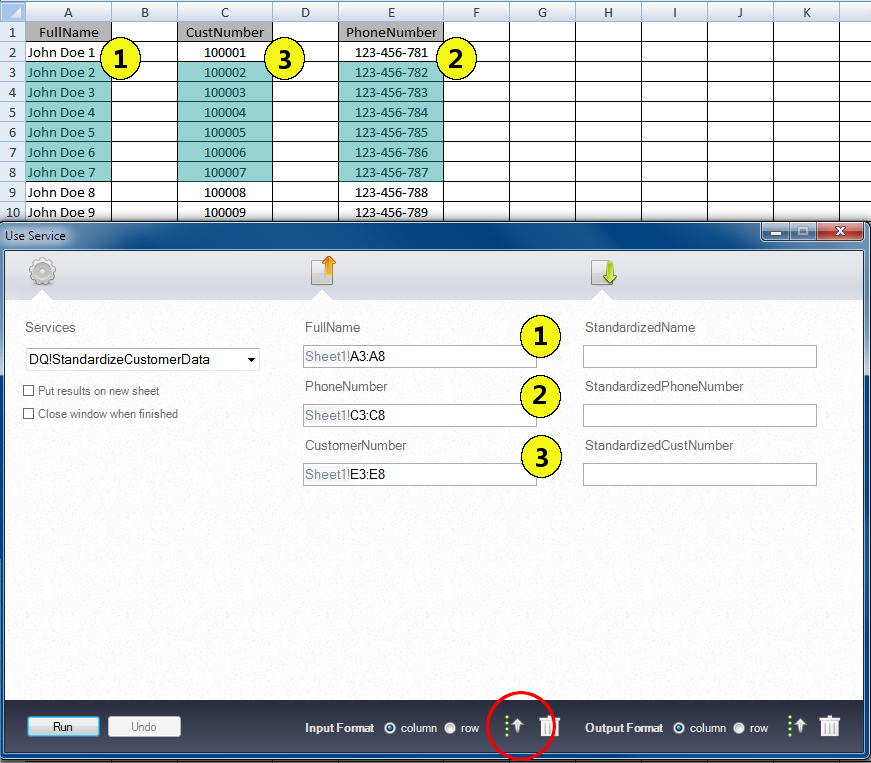
The following figure shows the correlation between the selection order of Excel ranges and input fields in the
Use Service
window:
The figure shows highlighted columns in an Excel sheet that contain FullName, CustNumber, and PhoneNumber. The figure includes the Excel sheet column range for each field name in the Use Service window. The column range has the following syntax: Sheet1!A3:A8
The highlighted blue areas in the Excel worksheet indicate the cell ranges that you select. The numbers in the Excel worksheet indicate the order that you select the ranges. The numbers in the
Use Service
window indicate the order in which the Data Quality for Excel plug-in populates the input fields.
If you click the
Autofill
button in the Input section of the
Use Service
window, the plug-in populates the input fields with the cell ranges indicated by the corresponding numbers. The
Autofill
button is indicated by the red circle in the figure.

Unaligned Selections

You can select unaligned cell ranges to populate multiple input and output fields. Selections are unaligned if the cell ranges do not use the same rows or columns for the start or end of the range.
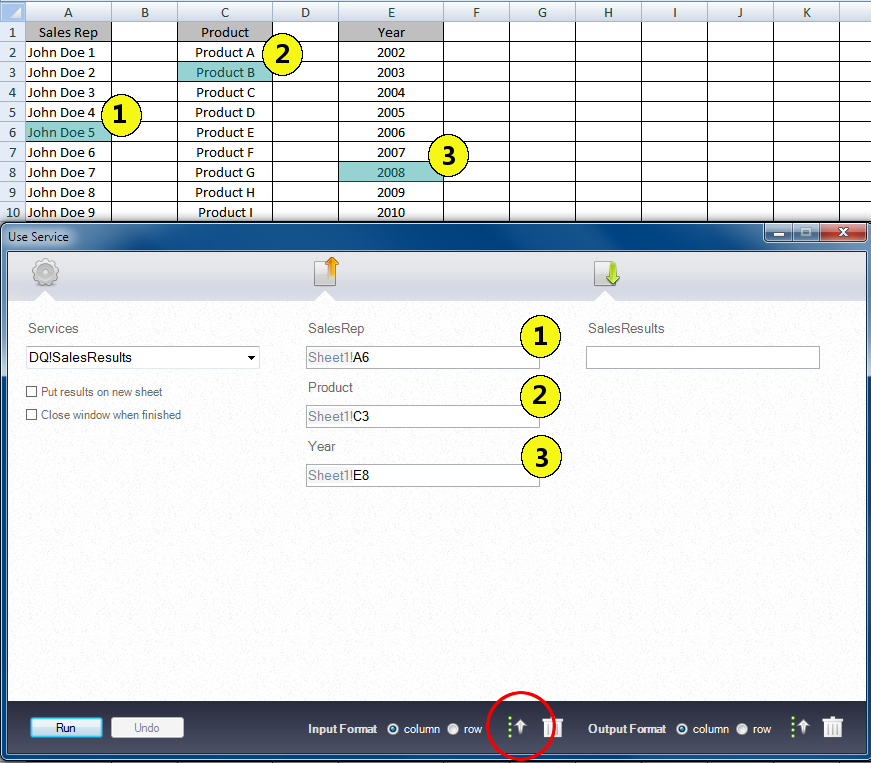
The following figure shows the correlation between unaligned selections in a worksheet and output fields in the
Use Service
window:
The figure shows an Excel sheet and corresponding Use Service window configuration. Three cells are highlighted in the Excel sheet. Each cell is in a different row and in a different column of the spreadsheet. The Use Service window shows the name of each field and the cell location of the field.
The highlighted blue areas in the Excel worksheet indicate the cell ranges that you select. The numbers in the Excel worksheet indicate the order that you select the ranges. The numbers in the
Use Service
window indicate the order in which the Data Quality for Excel plug-in populates the input fields.
If you click the
Autofill
button in the Input section of the
Use Service
window, the plug-in populates the input fields with the cell ranges indicated by the corresponding numbers. The
Autofill
button is indicated by the red circle in the figure.

Column and Row Selections

You can select column and row headers in to populate input and output fields with entire column ranges.
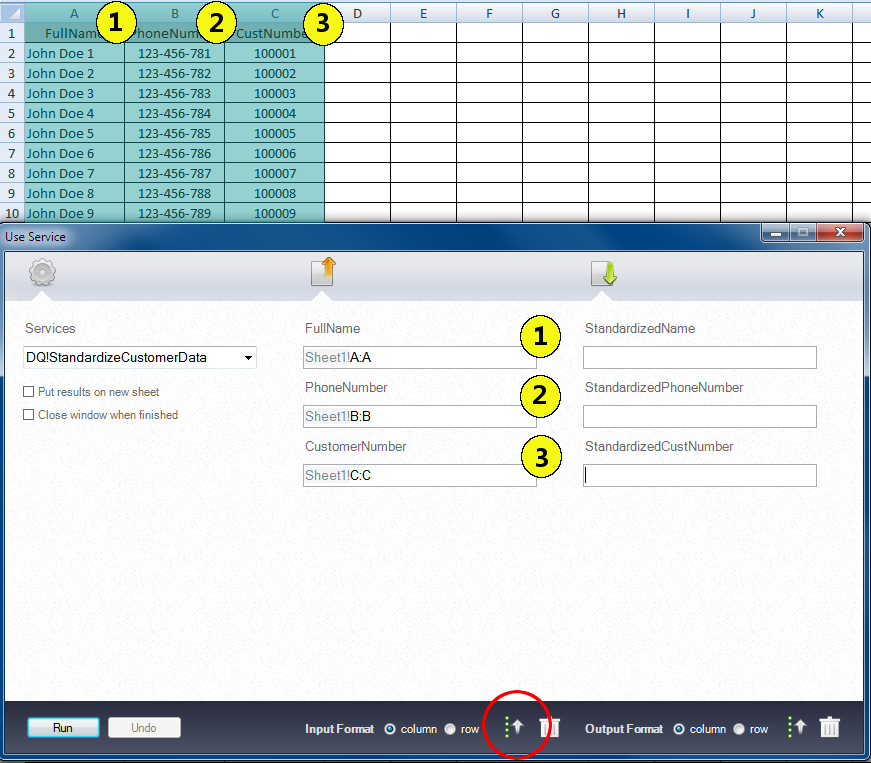
The following figure shows the correlation between selected columns in a worksheet and output fields in the
Use Service
window:
The figure shows an Excel sheet with ten rows of data. FullName is in column A, PhoneNumber is in column B, and CustomerNumber is in column C. The Use Service window shows the following configuration: FullName Sheet1!A:A, PhoneNumber Sheet1!B:B, and CustomerNumber Sheet1!C:C.
The highlighted blue area in the Excel worksheet indicates columns that you select. The numbers in the Excel worksheet indicate the order that you select the columns. The numbers in the
Use Service
window indicate the order in which the Data Quality for Excel plug-in populates the input fields.
If you click the
Autofill
button in the Input section of the
Use Service
window, the plug-in populates the input fields with the column ranges from your selection. The
Autofill
button is indicated by the red circle in the figure.
When you select a column or row header, Data Quality for Excel uses the full column range. For example, if you select the header for Column C and click
Autofill
, Data Quality for Excel writes
C:C
into the currently selected service field. However, when the Data Quality for Excel plug-in runs a service, the plug-in recalculates the range in service fields that use full columns or rows. The plug-in locates the last populated cell in the row or column and updates the field so that the range uses the last populated cell as an endpoint. For example, if the last populated cell is C28, then the plug-in updates the field to read
C1:C28
.

Multiple Ranges from a Single Range

You can populate input and output fields with multiple ranges that Data Quality for Excel detects from the columns or rows in a single range.
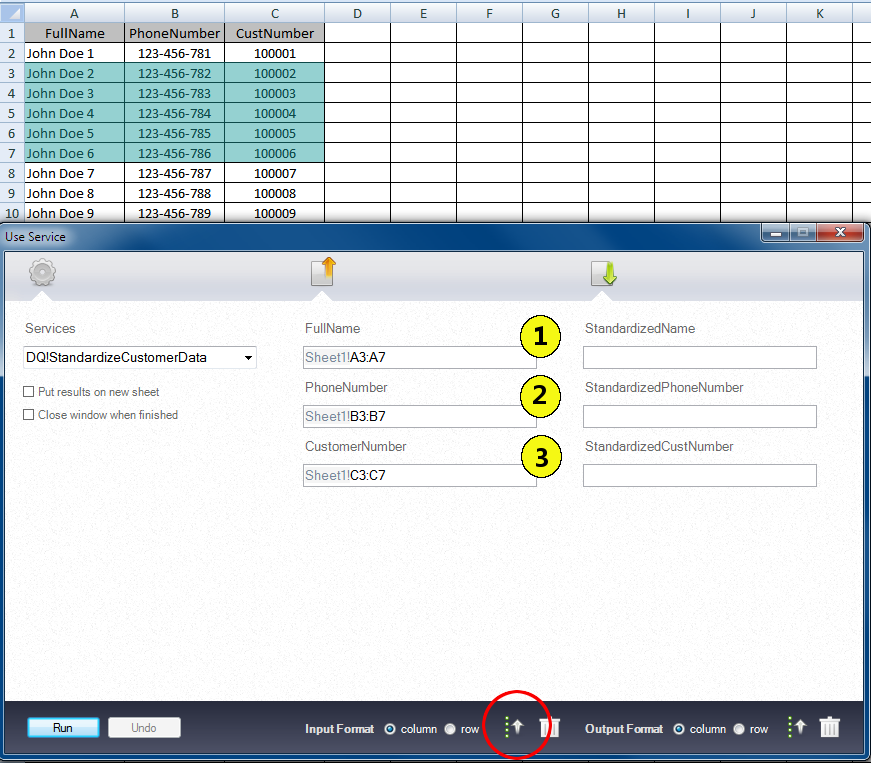
The following figure shows the correlation between a selected range in a worksheet and output fields in the
Use Service
window:
The figure shows an Excel spreadsheet with ten rows of data and three columns of data. The columns have the following headers: FullName, PhoneNumber, and CustNumber. Rows three through seven are highlighted in the spreadsheet. The Use Service window shows the following configuration: FullName Sheet1!A3:A7, PhoneNumber Sheet1!B3:B7, CustomerNumber Sheet1!C3:C7.
The highlighted blue area in the Excel worksheet indicates the cell range that you select. The numbers in the
Use Service
window indicate the order in which the Data Quality for Excel plug-in populates the input fields.
If you click the
Autofill
button in the Input section of the
Use Service
window, the plug-in populates the input fields with the cell ranges from your selection. The
Autofill
button is indicated by the red circle in the figure.

Running a Data Quality Service

Select a data quality service to process data contained in Microsoft Excel worksheets.
  1. Click
    Use
    in the Informatica ribbon.
  2. Select a data quality service.
    Data Quality for Microsoft Excel loads input and output fields from the data quality service.
  3. Choose input and output formats.
  4. Enter cell ranges in the data quality service input and output fields. You can click
    Autofill
    to fill the fields with cell ranges that you select in the Excel worksheet.
  5. Click
    Run.
    The data quality service processes the data and writes the results to the Microsoft Excel worksheet.

0 COMMENTS

We’d like to hear from you!