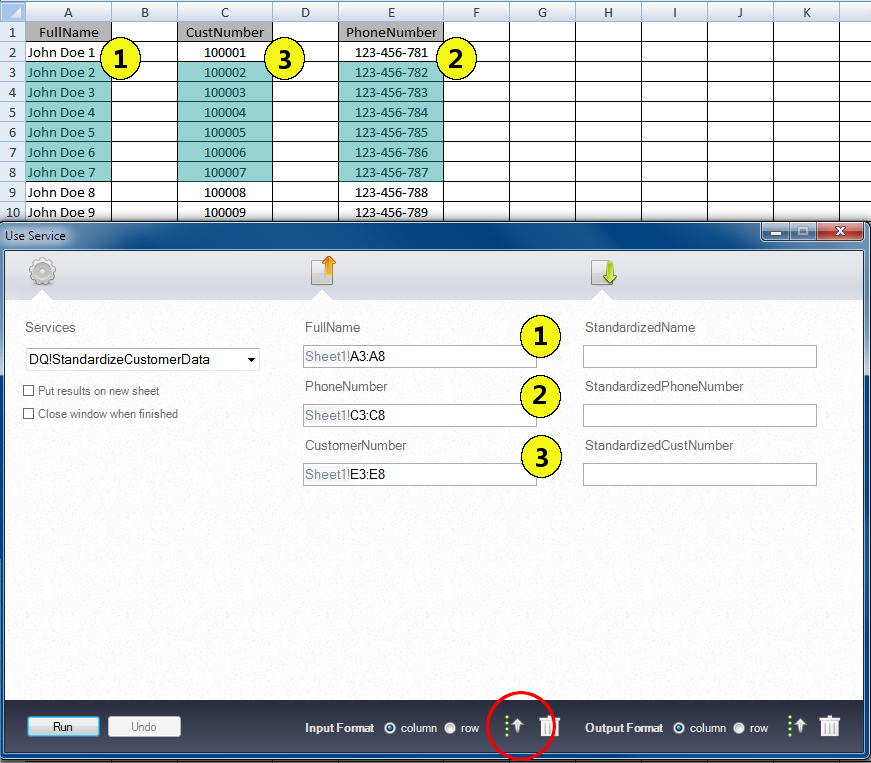
The Autofill function fills service fields based on the order that you select ranges in the worksheet.
The following figure shows the correlation between the selection order of Excel ranges and input fields in the
Use Service
window:
The highlighted blue areas in the Excel worksheet indicate the cell ranges that you select. The numbers in the Excel worksheet indicate the order that you select the ranges. The numbers in the
Use Service
window indicate the order in which the Data Quality for Excel plug-in populates the input fields.
If you click the
Autofill
button in the Input section of the
Use Service
window, the plug-in populates the input fields with the cell ranges indicated by the corresponding numbers. The
Autofill
button is indicated by the red circle in the figure.